Claude MCP Setup Guide
Claude MCP Setup Guide
Connect Claude to Franchise Signal and query structured franchise FDD data, compare filing years, review Item 19, analyze Item 7, and build diligence workflows from franchise disclosures.
Create Your Franchise Signal Account
Create your Franchise Signal account so your brand access, MCP clients, selected FDD years, and AI credits can be tied to your profile.
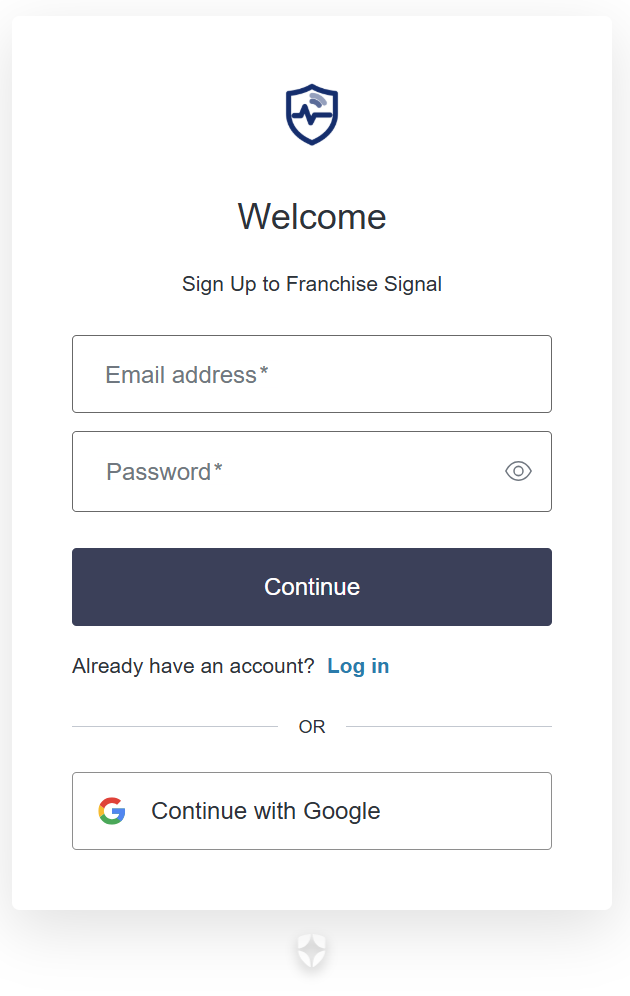
- Your Franchise Signal account controls MCP access.
- Claude only sees the data tied to your profile.
- Sign up before creating your MCP client.
Create Your Claude MCP Client
Open your Franchise Signal profile and create a new Claude MCP client. This gives you the OAuth values Claude will use to connect securely.
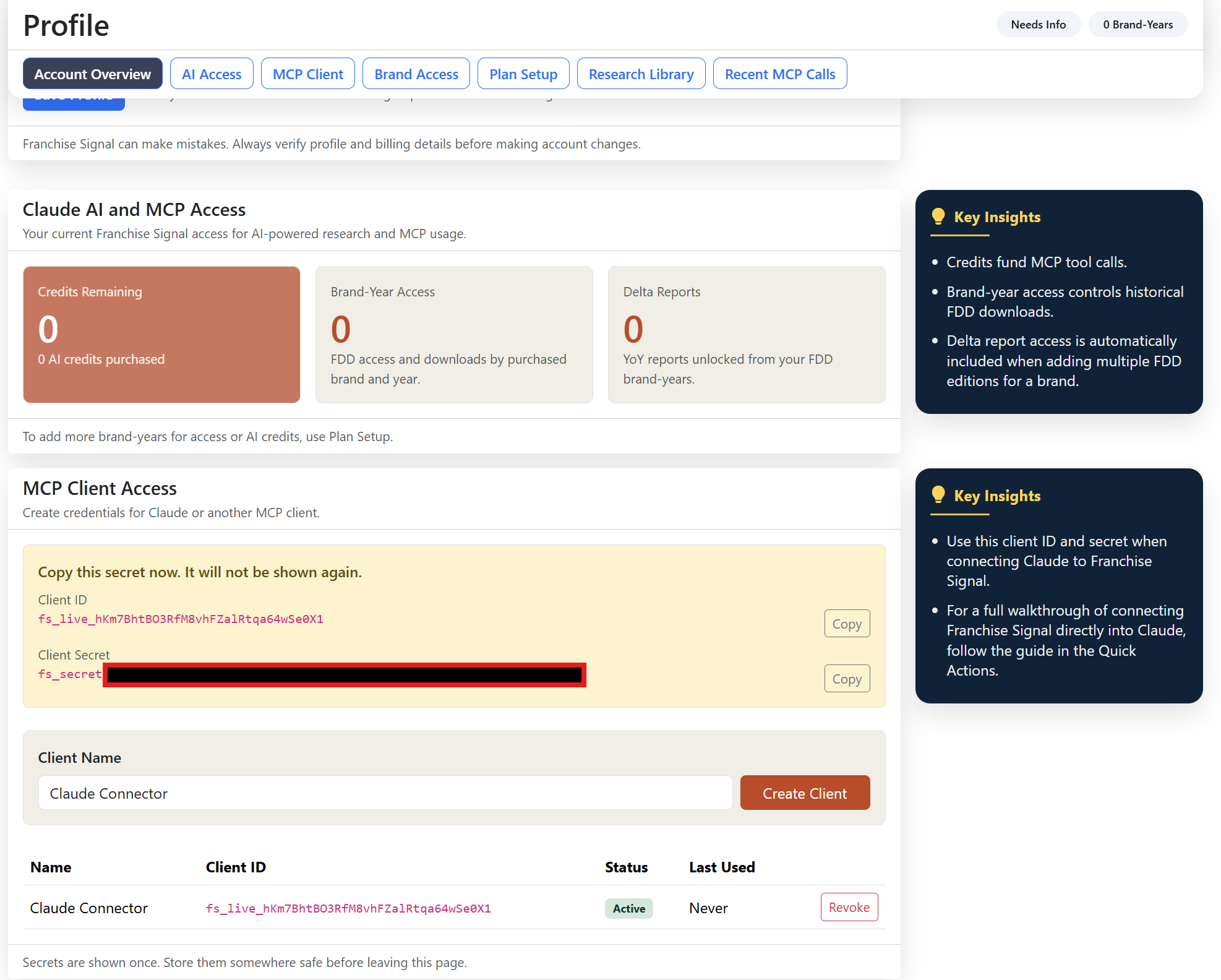
- The MCP client creates your Claude OAuth credentials.
- Use a separate MCP client for each workspace if needed.
- Do not share your Client Secret publicly.
Open Claude Desktop And Visit Connectors
Open Claude Desktop, go to connectors, and start adding a custom connector for Franchise Signal.
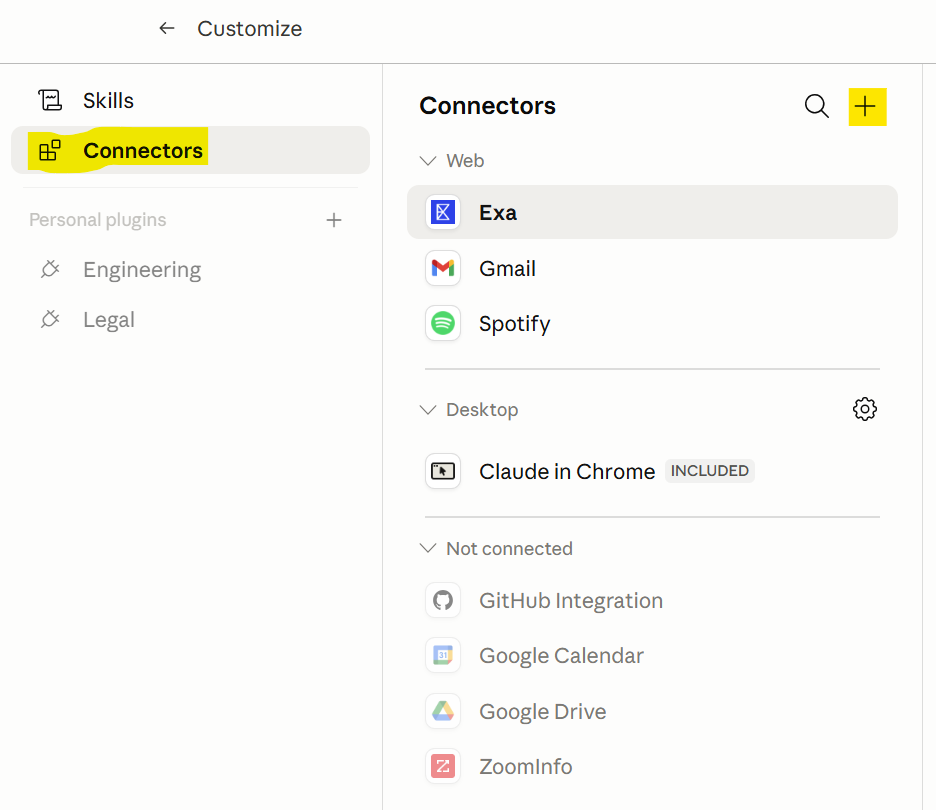
- Claude Desktop is where you add the connector.
- The connector lets Claude call Franchise Signal tools.
- Use the custom connector flow for your MCP server.
Enter The Franchise Signal MCP Server
Add Franchise Signal as a custom MCP connector in Claude. Use the server name and URL below.
Franchise Signalhttps://www.franchisesignal.com/mcp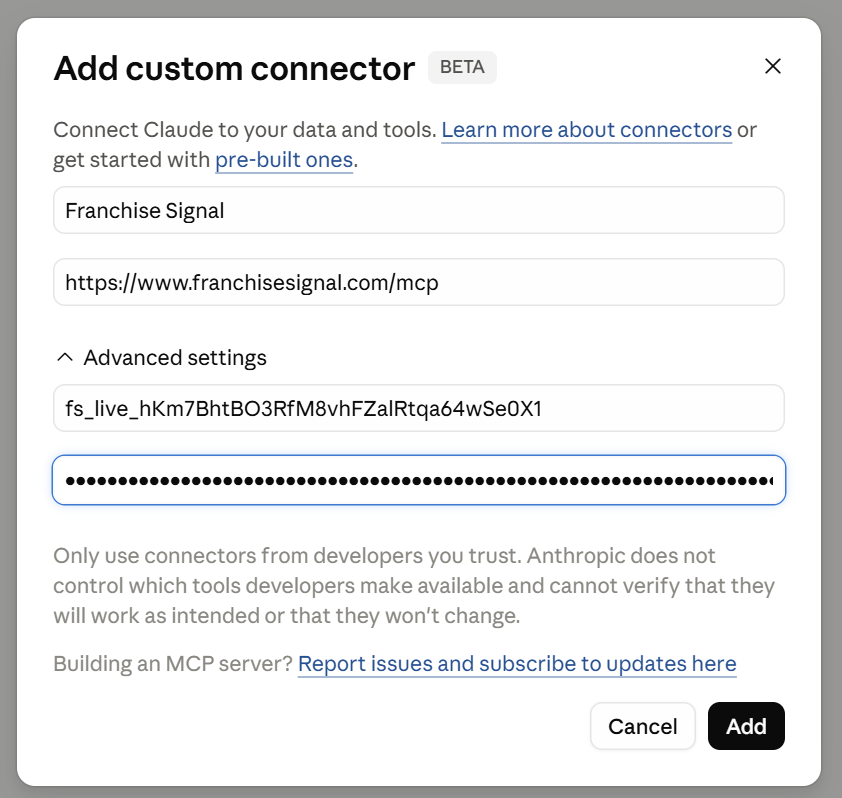
- The MCP server URL tells Claude where Franchise Signal tools live.
- Use the exact URL shown here.
- Copy and paste the values to avoid setup errors.
Connect Using OAuth From Claude
Click Connect in Claude and complete the OAuth authorization flow. This links Claude to your Franchise Signal profile.
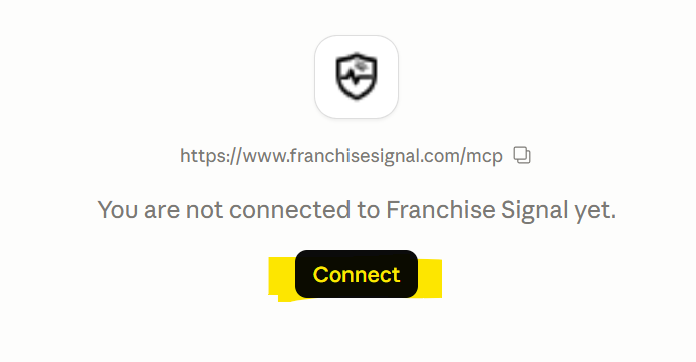
- OAuth connects Claude to your Franchise Signal account.
- Claude does not need your Franchise Signal password.
- Authorization keeps access tied to your profile.
Confirm The Connector In Claude
After authorization, Claude will show the Franchise Signal connector and available tools. Confirm the connector is active before querying FDD data.
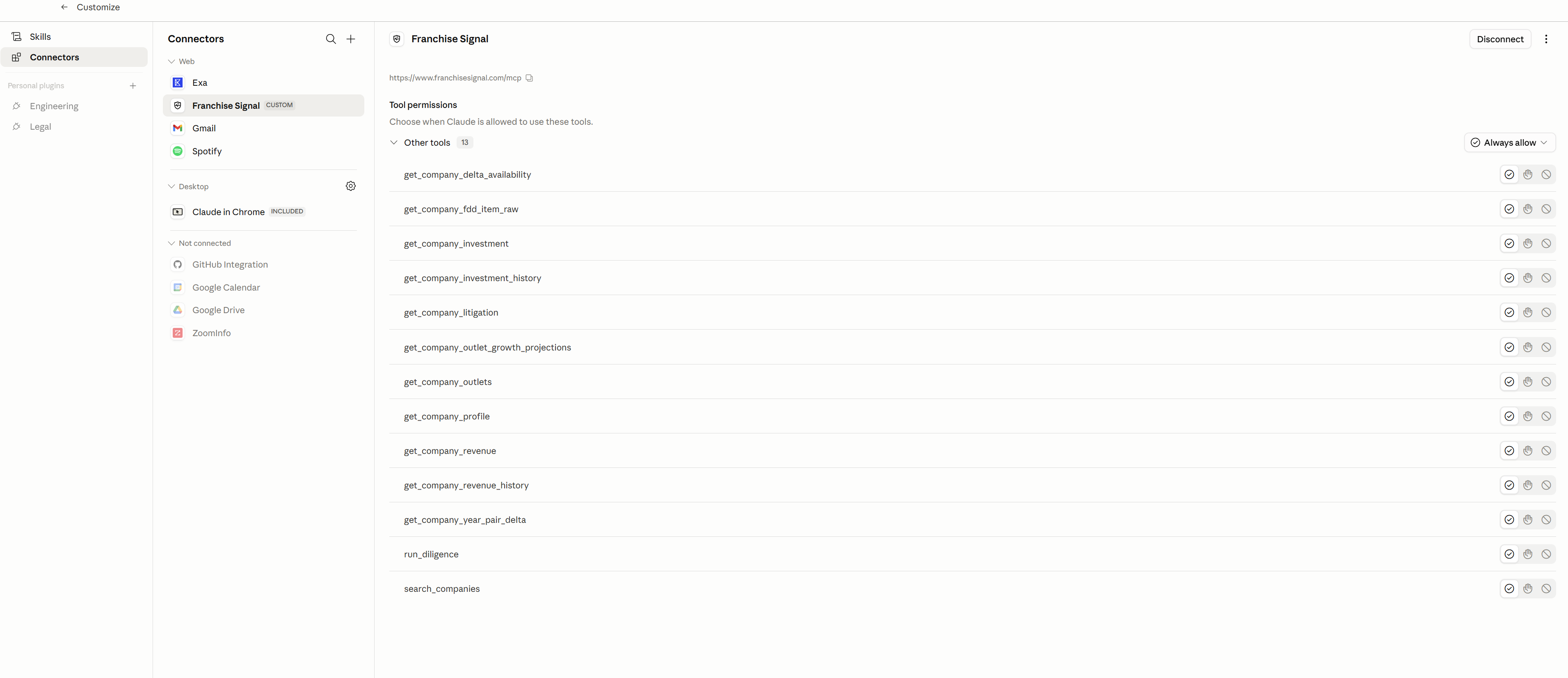
- A connected tool list means Claude can see Franchise Signal.
- Available tools may include company profile, raw FDD item data, revenue, investment, outlet, and diligence calls.
- If tools do not appear, reconnect or recreate the MCP client.
Select Brand Years And Add AI Credits
Return to Franchise Signal and select the brands and FDD years you want available in Claude. Then add AI credits for MCP tool usage.
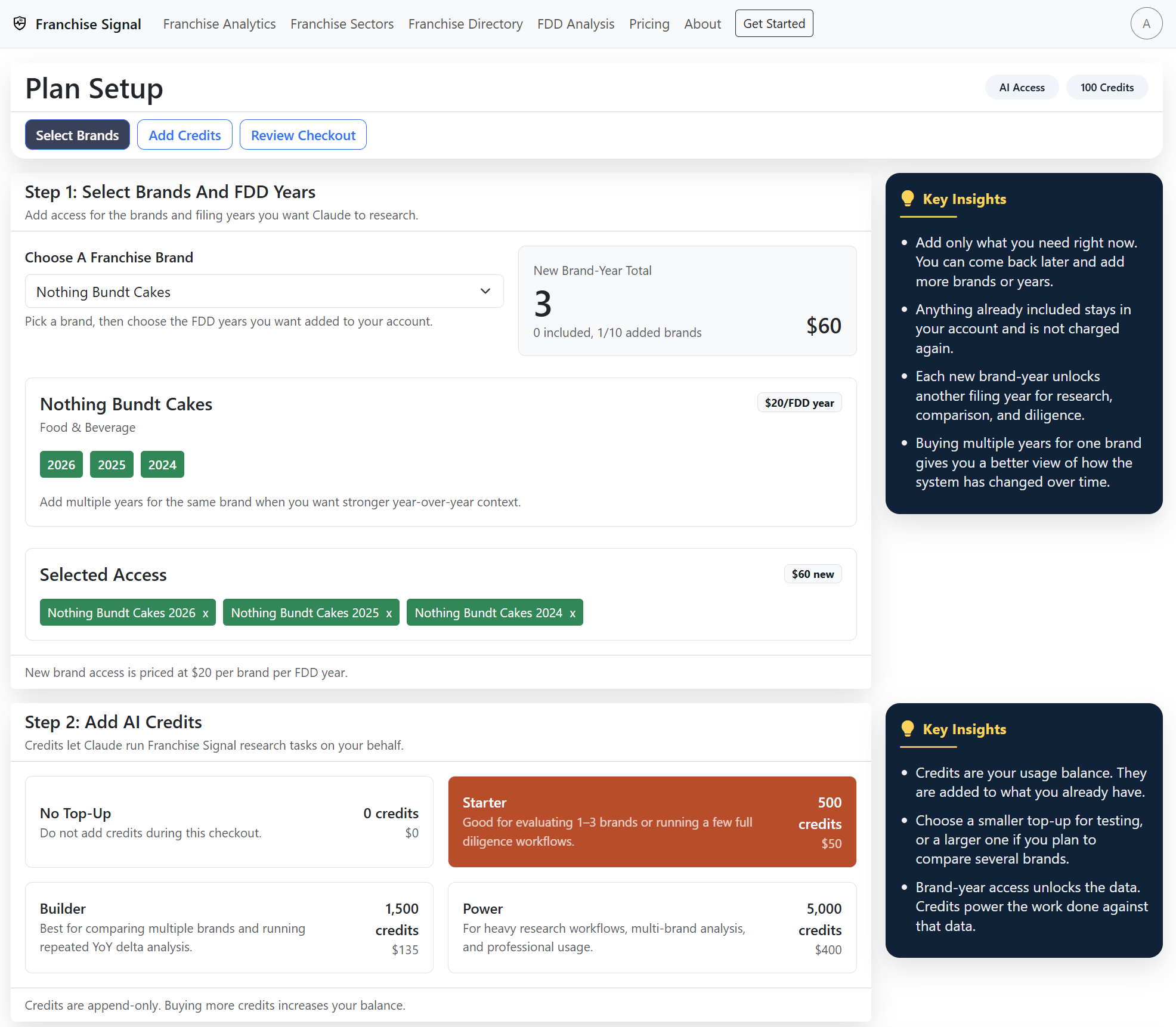
- Brand-year access controls which FDDs Claude can query.
- Multiple years enable stronger year-over-year analysis.
- Credits power MCP tool calls inside Claude.
Start Querying Franchise Data In Claude
Ask Claude to compare FDD years, analyze Item 19, review Item 7 investment trends, summarize outlet growth, or build a pro-forma using Franchise Signal data.
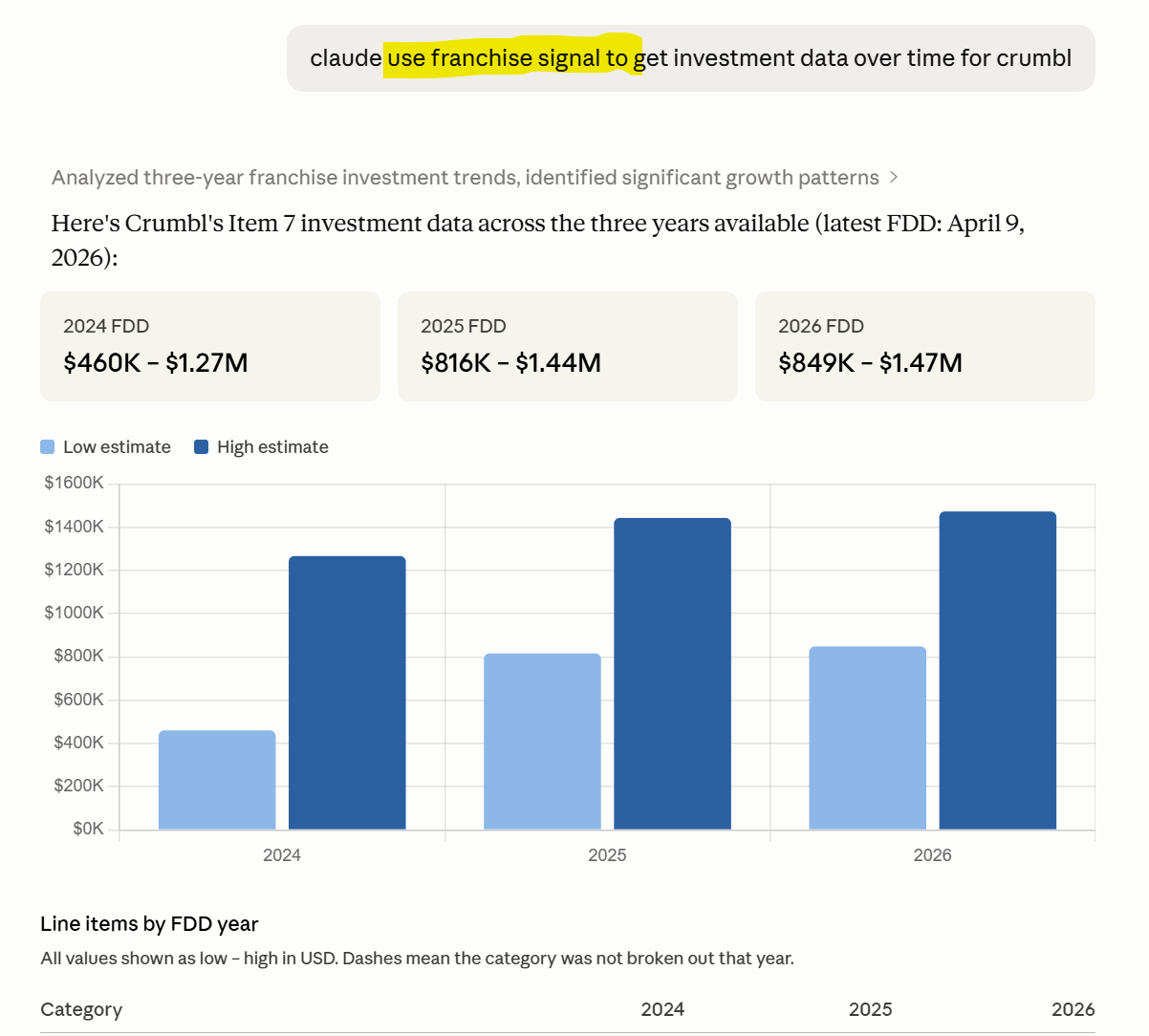
- Use Claude for diligence workflows, not just simple lookup.
- Ask for source-grounded analysis across selected FDD years.
- Good prompts mention the brand, years, item numbers, and desired output.
Want Help Connecting Claude To FDD Data?
Franchise Signal is built for franchise buyers, attorneys, analysts, lenders, and diligence teams that want Claude to work against structured FDD data instead of loose web search.